
Precision-driven computing requires granular control over hardware resources. While Windows 11 performance typically relies on automated power profiles, a hidden registry catalyst allows users to recalibrate CPU behavior for peak efficiency. By unlocking the “Processor Performance Boost Mode,” users can transition from generic presets to a calibrated system architecture that balances raw speed with energy conservation.
Unlocking the Power Management Core
Modern CPUs utilize dynamic clock speeds to handle variable workloads. However, Microsoft hides the most aggressive tuning options from the standard interface. To access these, you must execute a strategic registry modification. This structural change exposes the Windows 11 performance settings required to fine-tune how your processor handles boost frequencies.
The Registry Calibration Path
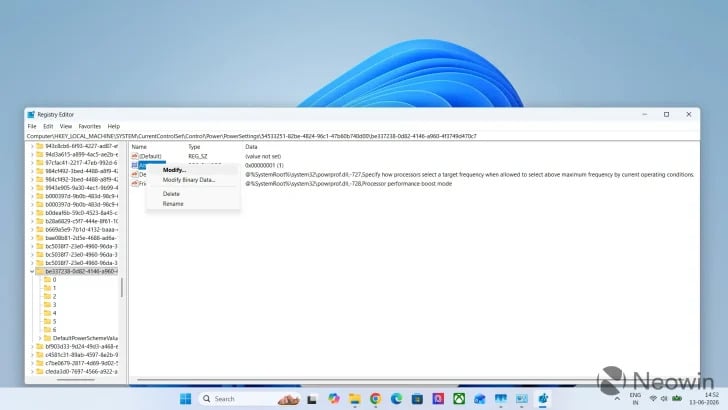
First, navigate to the following precision path within the Registry Editor:
HKEY_LOCAL_MACHINE\SYSTEM\CurrentControlSet\Control\Power\PowerSettings\54533251-82be-4824-96c1-47b60b740d00\be337238-0d82-4146-a960-4f3749d470c7
Locate the Attributes key and modify its value from 1 to 2. Consequently, the operating system will reveal a suite of advanced processor modes under your advanced power settings menu.
Systematic CPU Mode Selection
Once unlocked, you can choose from several calibrated modes to optimize your workflow. Whether you prioritize thermal stability or maximum output, these settings provide the necessary baseline for hardware efficiency.
- Aggressive: Forces the CPU to maintain peak boost frequencies for sustained workloads.
- Efficient Enabled: Optimizes the processor for energy-saving P-states while allowing boost when essential.
- Aggressive At Guaranteed: Ensures the system delivers maximum performance strictly above the manufacturer’s frequency baseline.

The Situation Room: Analysis
The Translation
Technically, this registry edit unlocks “Collaborative Processor Performance Control” (CPPC). In simpler terms, it stops Windows from making all the decisions about your CPU speed. By manualizing the Processor Performance Boost Mode, you effectively decide if your laptop should act like a high-speed racing machine or a fuel-efficient hybrid.
The Socio-Economic Impact
For the Pakistani workforce, particularly freelancers and students facing frequent power outages, this is a game-changer. Calibrating a laptop to “Efficient” mode can extend battery life by up to 20%, allowing for uninterrupted productivity during load-shedding. Conversely, engineering students can toggle to “Aggressive” mode to finish complex renders faster, directly improving technical output across the digital economy.
The Forward Path
This development represents a Momentum Shift. Providing users with the agency to control hardware power consumption is a vital step toward system longevity. As electricity costs rise and mobile computing becomes the standard, these precision tweaks move us away from wasteful default settings and toward a more disciplined digital infrastructure.